Init Containers and Multi-Container Patterns
SummaryCovers init container mechanics (sequential execution, failure behavior,...
Covers init container mechanics (sequential execution, failure behavior,...
Covers init container mechanics (sequential execution, failure behavior, use cases), the three canonical multi-container Pod patterns (sidecar, ambassador, adapter) with complete YAML manifests, and the shared networking and volume primitives that enable inter-container communication within a Pod.
Init Containers and Multi-Container Patterns
A Pod’s spec.containers list defines the application containers that run for the Pod’s entire lifetime. But Kubernetes offers a second list — spec.initContainers — for containers that run before the application containers start, execute to completion, and then exit. Combined with multi-container patterns that place helper containers alongside your main application, init containers give you fine-grained control over what happens inside a Pod before and during execution.
Init Containers
Init containers are defined in spec.initContainers and differ from regular containers in three fundamental ways:
-
They run to completion. An init container must exit with status code 0 before the next init container (or any application container) starts. If it fails, Kubernetes restarts it according to the Pod’s
restartPolicy— and the Pod stays in theInitphase until the init container succeeds. -
They run sequentially. If you define three init containers, Kubernetes runs them in order: the first must succeed before the second starts, and the second must succeed before the third starts. Application containers launch only after every init container has exited successfully.
-
They do not support probes. Init containers have no
livenessProbe,readinessProbe, orstartupProbe. Their “health check” is their exit code — 0 means success, anything else means failure and restart.
Why Init Containers Exist
Init containers solve the problem of preconditions. Your application container should not start until certain conditions are true — a dependency is reachable, a configuration file has been written, a database schema migration has been verified. You could build this logic into your application startup code, but that couples infrastructure concerns to application code. Init containers keep them separate.
Common use cases:
- Wait for a dependency. An init container loops until a database or API endpoint responds, preventing the main container from crashing on connection errors at startup.
- Populate a shared volume. An init container clones a Git repository or downloads configuration files into an
emptyDirvolume that the application container then reads. - Run a database migration check. An init container verifies that the expected schema version exists before the application connects.
- Set file permissions. An init container running as root adjusts ownership or permissions on a volume that the application container (running as a non-root user) will consume.
Example: Wait for a Database
This Pod runs an init container that waits for a PostgreSQL service to accept TCP connections on port 5432 before starting the main application:
apiVersion: v1
kind: Pod
metadata:
  name: app-with-init
  labels:
    app: backend
spec:
  initContainers:
    - name: wait-for-db
      image: busybox:1.36
      command:
        - sh
        - -c
        - |
          echo "Waiting for database..."
          until nc -z postgres-svc 5432; do
            echo "Database not ready, retrying in 2s..."
            sleep 2
          done
          echo "Database is reachable."
  containers:
    - name: app
      image: myapp:1.0
      ports:
        - containerPort: 8080
      env:
        - name: DB_HOST
          value: postgres-svc
        - name: DB_PORT
          value: "5432"
The nc -z postgres-svc 5432 command attempts a zero-I/O TCP connection to the postgres-svc Service on port 5432. The -z flag means it closes the connection immediately after verifying it can be established. The until loop retries every 2 seconds until the connection succeeds, at which point the init container prints a confirmation message and exits with status 0.
While the init container is running, kubectl get pods shows the Pod’s status as Init:0/1 — meaning zero of one init container has completed. Once it succeeds, the status transitions through PodInitializing to Running as the app container starts.
Example: Populate a Shared Volume
This Pod uses an init container to write a configuration file that the main application reads:
apiVersion: v1
kind: Pod
metadata:
  name: config-loader
spec:
  initContainers:
    - name: fetch-config
      image: busybox:1.36
      command:
        - sh
        - -c
        - |
          echo '{"logLevel":"info","maxConnections":100}' > /config/app-config.json
      volumeMounts:
        - name: config-volume
          mountPath: /config
  containers:
    - name: app
      image: myapp:1.0
      volumeMounts:
        - name: config-volume
          mountPath: /etc/app
          readOnly: true
  volumes:
    - name: config-volume
      emptyDir: {}
The emptyDir volume is created when the Pod is scheduled to a node. The init container writes the configuration file to /config/app-config.json. The application container mounts the same volume at /etc/app and reads the file from /etc/app/app-config.json. The readOnly: true flag on the application container’s volume mount prevents accidental modification.
Init Container Failure Behavior
If an init container exits with a non-zero status code, Kubernetes applies the Pod’s restartPolicy:
restartPolicy: Always(the default for Pods created by Deployments) — Kubernetes restarts the failed init container. The Pod stays inInit:CrashLoopBackOffuntil the init container succeeds.restartPolicy: Never— the Pod transitions toFailedand is not retried.restartPolicy: OnFailure— Kubernetes restarts the failed init container, similar toAlwaysfor init containers.
On the exam, if you see a Pod stuck in Init:CrashLoopBackOff, inspect the init container’s logs:
kubectl logs app-with-init -c wait-for-dbThe -c flag specifies which container’s logs to view. Without it, kubectl logs defaults to the first application container, which has not started yet and has no logs.
Multi-Container Pod Patterns
When a Pod contains more than one application container, those containers should serve complementary roles. Kubernetes does not enforce any particular pattern, but three designs have become canonical because they solve recurring problems cleanly.
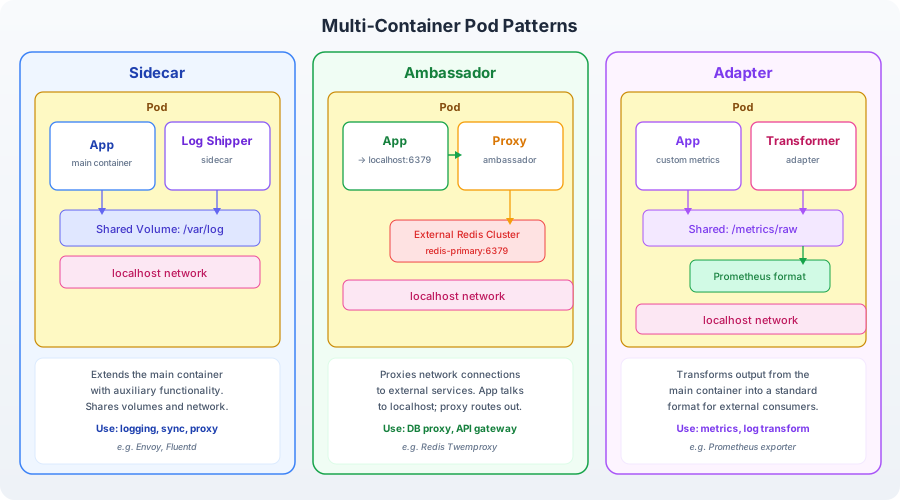
Multi-container Pod patterns: the diagram shows three Pod configurations. In the Sidecar pattern, the main application container writes logs to a shared volume, and a sidecar container (such as a log shipper like Fluentd) reads from the same volume and forwards logs to an external logging service. In the Ambassador pattern, the application container sends requests to localhost on a known port, and an ambassador container (such as an HAProxy or Envoy instance) intercepts those requests and routes them to the appropriate external service — abstracting away service discovery and connection management from the application. In the Adapter pattern, the application container produces output in a custom format (for example, proprietary metrics), and an adapter container transforms that output into a standardized format (such as Prometheus exposition format) that external monitoring systems can consume. All three patterns rely on shared networking (localhost communication) and shared volumes between containers within the same Pod.
Sidecar Pattern
A sidecar container extends or enhances the main container’s functionality without modifying its code. The most common example is log shipping: the application writes structured logs to a file on a shared volume, and a sidecar container tails that file and forwards entries to a centralized logging system.
apiVersion: v1
kind: Pod
metadata:
  name: app-with-sidecar
  labels:
    app: web
spec:
  containers:
    - name: app
      image: myapp:1.0
      ports:
        - containerPort: 8080
      volumeMounts:
        - name: log-volume
          mountPath: /var/log/app
    - name: log-shipper
      image: busybox:1.36
      command:
        - sh
        - -c
        - |
          tail -F /var/log/app/app.log
      volumeMounts:
        - name: log-volume
          mountPath: /var/log/app
          readOnly: true
  volumes:
    - name: log-volume
      emptyDir: {}
The app container writes logs to /var/log/app/app.log. The log-shipper container reads from the same path on the same volume. The tail -F command follows the file even if it is rotated (the uppercase -F handles file replacement, unlike lowercase -f). In a production scenario, the sidecar would be a Fluentd or Fluent Bit container shipping logs to Elasticsearch or a cloud logging service.
Other sidecar use cases include TLS proxy termination (the sidecar handles HTTPS while the application listens on plain HTTP), configuration hot-reloading (the sidecar watches a ConfigMap-mounted volume and signals the application when files change), and certificate rotation.
Ambassador Pattern
An ambassador container acts as a proxy between the main application and external services. The application sends all external requests to localhost on a predictable port, and the ambassador handles the complexity of service discovery, connection pooling, retry logic, or protocol translation.
apiVersion: v1
kind: Pod
metadata:
  name: app-with-ambassador
  labels:
    app: api
spec:
  containers:
    - name: app
      image: myapp:1.0
      ports:
        - containerPort: 8080
      env:
        - name: REDIS_HOST
          value: "localhost"
        - name: REDIS_PORT
          value: "6380"
    - name: redis-ambassador
      image: malexer/twemproxy:latest
      ports:
        - containerPort: 6380
The application connects to Redis at localhost:6380. The ambassador container (Twemproxy in this example) listens on port 6380 and proxies requests to the actual Redis cluster — which might be a set of sharded Redis instances, a managed Redis service in a different namespace, or a cloud provider’s Redis endpoint. The application has no awareness of where Redis actually lives or how many shards exist. If the Redis topology changes, only the ambassador configuration changes — the application code remains untouched.
This pattern is powerful because it lets you develop and test the application against localhost regardless of the actual deployment environment. In development, the ambassador might point to a single local Redis instance. In staging, it routes to a replicated Redis service. In production, it connects to a managed cloud Redis cluster with TLS. The application code is identical in all environments.
Adapter Pattern
An adapter container transforms the output of the main container into a format that external systems expect. The most common use case is metrics: the application exports metrics in a custom format, and the adapter converts them into Prometheus exposition format.
apiVersion: v1
kind: Pod
metadata:
  name: app-with-adapter
  labels:
    app: legacy
spec:
  containers:
    - name: app
      image: legacy-app:2.1
      ports:
        - containerPort: 8080
      volumeMounts:
        - name: metrics-volume
          mountPath: /var/metrics
    - name: metrics-adapter
      image: prom/statsd-exporter:latest
      ports:
        - containerPort: 9102
      args:
        - --statsd.listen-udp=:8125
        - --web.listen-address=:9102
      volumeMounts:
        - name: metrics-volume
          mountPath: /var/metrics
          readOnly: true
  volumes:
    - name: metrics-volume
      emptyDir: {}
The legacy-app container emits StatsD-format metrics on UDP port 8125. The metrics-adapter container (Prometheus StatsD Exporter) receives those metrics and converts them to Prometheus format, serving them on HTTP port 9102 at the /metrics endpoint. Prometheus scrapes the adapter container, and the legacy application remains completely unmodified.
Other adapter use cases include format conversion for logging (custom log format → JSON structured logs), protocol adaptation (gRPC → REST), and data normalization (multiple data formats → a single canonical schema).
How Containers Share Resources Within a Pod
The three multi-container patterns depend on two sharing mechanisms that Kubernetes provides within a Pod:
Shared Network Namespace
All containers in a Pod share the same network namespace. This means:
- They share the same IP address. If the Pod’s IP is
10.244.1.5, every container in that Pod responds to10.244.1.5. - They can reach each other on
localhost. Container A listening on port 8080 is reachable by Container B atlocalhost:8080. - They share the same port space. Two containers in the same Pod cannot both bind to port 8080 — they will conflict, and the second container will fail to start.
This shared networking is why the ambassador pattern works: the application sends traffic to localhost, and the ambassador container receives it because they share the same network stack. No Service, no DNS lookup, no TCP routing — they are on the same loopback interface.
Shared Volumes
Containers in the same Pod can mount the same volume at different (or identical) mount paths. The most common volume type for inter-container sharing is emptyDir, which creates an empty directory on the node when the Pod is created and deletes it when the Pod is removed.
volumes:
  - name: shared-data
    emptyDir: {}
Each container that needs access declares a volumeMount referencing the volume by name:
containers:
  - name: writer
    volumeMounts:
      - name: shared-data
        mountPath: /output
  - name: reader
    volumeMounts:
      - name: shared-data
        mountPath: /input
        readOnly: true
The writer container writes files to /output, and the reader container sees those files at /input. They are the same directory on the node’s filesystem — the mount paths are independent labels that map to the same underlying storage.
For memory-backed temporary storage (faster but limited by node RAM):
volumes:
  - name: scratch-space
    emptyDir:
      medium: Memory
      sizeLimit: 64Mi
Process Namespace Sharing
By default, containers in a Pod have separate PID namespaces — processes in one container are invisible to other containers. You can enable shared process namespaces with shareProcessNamespace: true in the Pod spec, which lets containers see and signal each other’s processes. This is rarely needed on the exam but is worth knowing exists.
Exam Strategy
Init containers and multi-container patterns show up in CKAD tasks in two forms:
-
Build from scratch — “Create a Pod with an init container that does X, and a main container that does Y.” You need to know the exact YAML structure:
spec.initContainersfor init containers andspec.containersfor the main plus any sidecar containers. -
Debug a broken Pod — a Pod is stuck in
Init:CrashLoopBackOffor one container in a multi-container Pod is failing. You needkubectl logs <pod> -c <container>to inspect the right container’s output andkubectl describe pod <pod>to read the Events section.
The imperative kubectl run command generates a Pod with a single container. For init containers or multi-container Pods, generate the initial YAML with --dry-run=client -o yaml, then edit the file to add the extra containers before applying.
kubectl run app --image=myapp:1.0 --dry-run=client -o yaml > pod.yaml
# Edit pod.yaml to add initContainers or additional containers
kubectl apply -f pod.yaml
There is no shortcut for multi-container Pods — you need to edit YAML. Practice writing the initContainers and additional containers entries until the structure is committed to muscle memory. The time you spend memorizing indentation now saves you debugging whitespace errors during the exam.