Rolling Updates, Rollbacks, and Update Strategies
SummaryCovers the RollingUpdate strategy parameters (maxSurge, maxUnavailable), step-by-step...
Covers the RollingUpdate strategy parameters (maxSurge, maxUnavailable), step-by-step...
Covers the RollingUpdate strategy parameters (maxSurge, maxUnavailable), step-by-step visualization of a rolling update with SVG diagram, image update commands, rollout monitoring and history, rollback to specific revisions, pause and resume for batched updates, the Recreate strategy trade-offs, and the deprecated --record flag.
Rolling Updates, Rollbacks, and Update Strategies
Deploying a new version of your application should not take it offline. Kubernetes Deployments achieve zero-downtime updates by gradually replacing Pods running the old version with Pods running the new version — a process called a rolling update. If the new version is broken, you roll back to the previous version with a single command. This section covers the mechanics of both operations in the detail the CKAD requires.
The Rolling Update Strategy
The default update strategy for a Deployment is RollingUpdate. When you change anything in the Pod template (image version, environment variable, resource limits), the Deployment controller creates a new ReplicaSet and gradually transitions Pods from the old ReplicaSet to the new one. Two parameters control the pace of this transition:
maxSurge
The maximum number of Pods that can exist above the desired replica count during the update. It can be an absolute number or a percentage of spec.replicas.
strategy:
  type: RollingUpdate
  rollingUpdate:
    maxSurge: 1
With replicas: 3 and maxSurge: 1, up to 4 Pods can exist at any point during the update (3 desired + 1 surge). The controller creates one new Pod before removing an old one, ensuring capacity never drops below 3.
When specified as a percentage:
maxSurge: 25%With replicas: 4 and maxSurge: 25%, the surge allows 1 extra Pod (25% of 4, rounded up). With replicas: 10, it allows 3 extra Pods (25% of 10, rounded up to 3).
maxUnavailable
The maximum number of Pods that can be unavailable during the update. It can also be an absolute number or a percentage.
strategy:
  type: RollingUpdate
  rollingUpdate:
    maxUnavailable: 1
With replicas: 3 and maxUnavailable: 1, at least 2 Pods must be available at all times. The controller can take down one old Pod before its replacement is ready.
The defaults are maxSurge: 25% and maxUnavailable: 25%. These defaults work well for most workloads: they allow the update to proceed with moderate parallelism while keeping most replicas available.
Tuning the Parameters
The two parameters create a trade-off between update speed and resource usage:
| Scenario | maxSurge | maxUnavailable | Effect |
|---|---|---|---|
| Conservative (zero downtime) | 1 | 0 | Never removes an old Pod until a new one is Ready. Slowest rollout, but availability never dips below replicas. Requires extra node capacity for the surge Pod. |
| Aggressive (fast rollout) | 50% | 50% | Replaces half the fleet at a time. Fast, but half the application is temporarily unavailable or running the new version. |
| Default | 25% | 25% | Balanced. The fleet transitions in roughly four waves. |
The constraint maxSurge and maxUnavailable cannot both be zero — the controller would have no room to make progress (it cannot create extra Pods and cannot remove existing ones).
Visualizing a Rolling Update
Consider a Deployment with 4 replicas updating from version v1 to v2 using the default strategy (maxSurge: 25%, maxUnavailable: 25%). With 4 replicas, 25% rounds up to 1 — so at most 1 extra Pod can exist and at most 1 Pod can be unavailable.
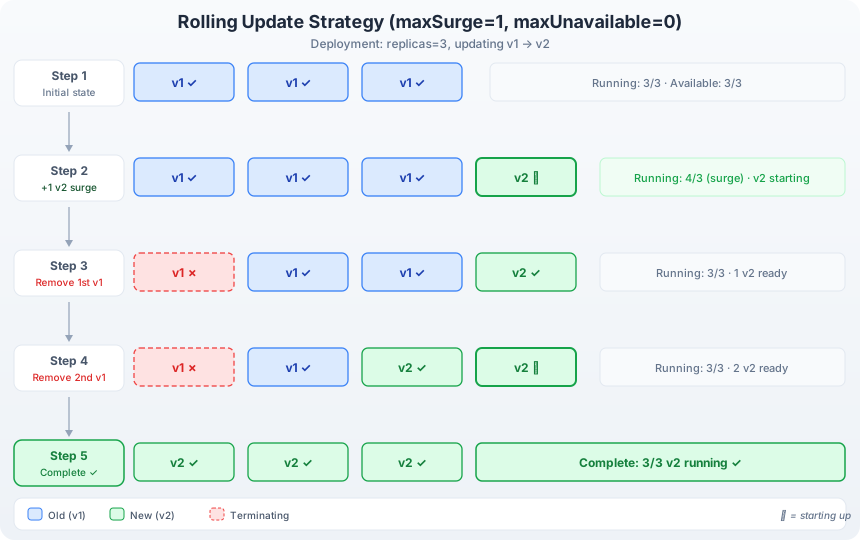
Rolling update visualization: the diagram shows five stages of a Deployment rolling update. Stage 1 (initial state): the old ReplicaSet runs 4 Pods (v1), desired=4. Stage 2 (scale up new): the Deployment creates the new ReplicaSet and scales it to 1 Pod (v2), total Pods = 5 (4 old + 1 new), which is within the maxSurge budget of 1 extra Pod. Stage 3 (scale down old): once the new Pod is Ready, the old ReplicaSet scales down by 1 (to 3 v1 Pods), total available = 4 (3 old + 1 new), satisfying the maxUnavailable constraint of at most 1 unavailable. Stage 4 (repeat cycle): the new ReplicaSet scales up to 2, then old scales down to 2, then new scales up to 3, then old scales down to 1. At each step, the total Pod count stays between 3 (replicas - maxUnavailable) and 5 (replicas + maxSurge). Stage 5 (complete): the new ReplicaSet runs 4 Pods (v2), the old ReplicaSet is scaled to 0 (retained for rollback). The Deployment’s rollout is complete.
The key insight: at no point during the update does the available Pod count drop below 3 (4 replicas minus 1 maxUnavailable) or exceed 5 (4 replicas plus 1 maxSurge). This bounded transition is what guarantees zero-downtime updates.
Updating a Deployment
Updating the Image
The most common update — change the container image version:
kubectl set image deployment/nginx nginx=nginx:1.26The syntax is kubectl set image deployment/<name> <container-name>=<new-image>. The container name must match the name field in the Pod template. If your Deployment has a single container named nginx, the command above changes its image from whatever it was to nginx:1.26.
This command modifies the Deployment’s Pod template, which triggers a rolling update. A new ReplicaSet is created with the updated image. Pods are gradually transitioned.
Alternative: kubectl edit
kubectl edit deployment nginxThis opens the Deployment manifest in your editor. Find the image field, change it, save, and exit. The rollout begins immediately.
Alternative: kubectl patch
kubectl patch deployment nginx -p '{"spec":{"template":{"spec":{"containers":[{"name":"nginx","image":"nginx:1.26"}]}}}}'Useful for scripting but verbose. On the exam, kubectl set image is the fastest option for image-only changes.
Monitoring a Rollout
Rollout Status
Watch the rollout progress in real time:
kubectl rollout status deployment/nginxOutput during a rollout:
Waiting for deployment "nginx" rollout to finish: 2 out of 3 new replicas have been updated...
Waiting for deployment "nginx" rollout to finish: 1 old replicas are pending termination...
deployment "nginx" successfully rolled out
This command blocks until the rollout completes (or fails). The exit code is 0 for success, non-zero for failure — useful in CI/CD scripts.
Inspecting ReplicaSets During Rollout
While a rollout is in progress, you can observe both ReplicaSets:
kubectl get rs -wThe -w flag watches for changes. You see the old ReplicaSet’s DESIRED count decreasing while the new ReplicaSet’s count increases.
Rollout Events
For detailed information about what happened during a rollout:
kubectl describe deployment nginxThe Events section at the bottom shows each scaling operation: “Scaled up replica set nginx-7c45b84548 to 1”, “Scaled down replica set nginx-6d4cf4f94b to 2”, and so on.
Rollout History
Every time you update a Deployment’s Pod template, Kubernetes records a new revision:
kubectl rollout history deployment/nginxdeployment.apps/nginx
REVISION CHANGE-CAUSE
1 <none>
2 <none>
3 <none>The CHANGE-CAUSE column is empty unless you annotate the Deployment at update time. To record the cause of a change:
kubectl annotate deployment/nginx kubernetes.io/change-cause="Updated to nginx:1.26"To see the details of a specific revision:
kubectl rollout history deployment/nginx --revision=2This shows the Pod template used in revision 2 — the image, environment variables, resource limits, and every other field. This is how you determine which revision to roll back to.
Rollback
Undo the Last Rollout
If the latest update is broken (Pods are crashing, the application is returning errors), roll back to the previous revision:
kubectl rollout undo deployment/nginxThis transitions the Deployment back to revision N-1. The Deployment controller scales up the old ReplicaSet (which was retained at zero replicas) and scales down the current ReplicaSet. The rollback itself is a rolling update — it follows the same maxSurge/maxUnavailable constraints.
Rollback to a Specific Revision
If you need to go further back than the previous revision:
kubectl rollout undo deployment/nginx --to-revision=2This restores the Pod template from revision 2. The Deployment controller performs a rolling update to transition from the current state to the revision-2 state.
After a rollback, the revision numbering continues forward. If you were on revision 4 and rolled back to revision 2, the rollback creates revision 5 (which has the same Pod template as revision 2). The numbering never goes backward.
Verify the rollback succeeded:
kubectl rollout status deployment/nginx
kubectl get rs
The ReplicaSet that was previously scaled to zero should now be scaled up, and the ReplicaSet that was running the broken version should be scaled to zero.
Pause and Resume
Sometimes you need to make multiple changes to a Deployment without triggering a rolling update for each change. Pausing the Deployment lets you batch changes:
# Pause the Deployment — no rollouts will occur
kubectl rollout pause deployment/nginx

# Make multiple changes
kubectl set image deployment/nginx nginx=nginx:1.26
kubectl set resources deployment/nginx -c nginx --limits=cpu=500m,memory=256Mi
kubectl set env deployment/nginx -c nginx LOG_LEVEL=debug

# Resume — all changes are applied in a single rollout
kubectl rollout resume deployment/nginx
Without pausing, each of the three commands above would trigger a separate rolling update — three sequential rollouts for what is logically one update. Pausing consolidates them into a single rollout.
While a Deployment is paused:
- Changes to the Pod template are recorded but not acted on.
kubectl rollout statusreports the Deployment is paused.- You cannot roll back a paused Deployment — resume it first.
- Scaling still works while paused (scaling does not involve a rollout).
The Recreate Strategy
The alternative to RollingUpdate is Recreate:
spec:
  strategy:
    type: Recreate
With Recreate, the Deployment controller terminates all existing Pods before creating any new ones. There is a period of complete downtime between the old Pods stopping and the new Pods starting.
When to use Recreate:
- Database migrations — the new version requires a schema change that is incompatible with the old version. Running both versions simultaneously would cause data corruption.
- Persistent volume access — the application uses a ReadWriteOnce PersistentVolume that can only be mounted by one Pod at a time. A rolling update would fail because the new Pod cannot mount the volume while the old Pod still holds it.
- Incompatible versions — the old and new versions cannot coexist in the same cluster (conflicting API contracts, shared state corruption, protocol incompatibilities).
The trade-off is clear: Recreate guarantees that old and new versions never run simultaneously, but it causes downtime equal to the time needed to terminate old Pods, pull the new image, and start new Pods. For most web applications, RollingUpdate is the correct choice.
Comparing the Strategies
| Aspect | RollingUpdate | Recreate |
|---|---|---|
| Downtime | None (when configured correctly) | Yes — all old Pods terminated before new Pods start |
| Resource overhead | Temporary extra Pods during transition | No extra Pods |
| Version coexistence | Old and new versions run simultaneously during rollout | Never — clean cutover |
| Rollback | Automatic via kubectl rollout undo | Possible but slower — must restart all Pods |
| Default | Yes | No |
The —record Flag
In older CKAD study materials and some blog posts, you will see commands like:
kubectl set image deployment/nginx nginx=nginx:1.26 --recordThe --record flag automatically populated the CHANGE-CAUSE column in kubectl rollout history by recording the full command that triggered the change. This flag is deprecated as of Kubernetes v1.24 and may be removed in a future version.
The replacement is manual annotation:
kubectl annotate deployment/nginx kubernetes.io/change-cause="Image update to nginx:1.26"On the exam, you may still encounter --record in existing resources or older task descriptions. It still functions in current Kubernetes versions — it is deprecated, not removed. If a task uses it, follow the task’s instructions. Otherwise, use the annotation approach.
Practical Workflow: Update, Verify, Rollback
Here is the complete sequence you would follow on the exam for a Deployment update task:
# 1. Check the current state
kubectl get deployment nginx -o wide
kubectl rollout history deployment/nginx

# 2. Update the image
kubectl set image deployment/nginx nginx=nginx:1.26

# 3. Annotate the change (optional but good practice)
kubectl annotate deployment/nginx kubernetes.io/change-cause="Upgrade to 1.26"

# 4. Monitor the rollout
kubectl rollout status deployment/nginx

# 5. Verify the Pods are running the new image
kubectl get pods -o jsonpath='{.items[*].spec.containers[0].image}'

# 6. If something is wrong — rollback
kubectl rollout undo deployment/nginx

# 7. Verify the rollback
kubectl rollout status deployment/nginx
kubectl get pods -o jsonpath='{.items[*].spec.containers[0].image}'
Step 5 uses jsonpath to extract the image field from all Pods in a single command. The output should show nginx:1.26 for all Pods after a successful update, or nginx:1.25 (the original image) after a successful rollback.
Exam Strategy
Rolling update and rollback tasks are among the most time-efficient items on the CKAD if you know the commands. The critical shortcuts:
kubectl set image— faster thankubectl editfor image-only changes.kubectl rollout status— confirms the rollout completed. Do not skip this step on the exam — tasks are graded on final state, and an incomplete rollout means the Pods are not all running the expected image.kubectl rollout undo --to-revision=N— requires you to first checkkubectl rollout historyto find the correct revision number.kubectl rollout pause/resume— use when a task requires multiple simultaneous changes to a Deployment.
The most common mistake on rollback tasks is forgetting to check kubectl rollout history first. If the task says “rollback to the version that was running nginx:1.24” and the history shows revision 1 used nginx:1.24, you need --to-revision=1. Running kubectl rollout undo without --to-revision only goes back one revision — which may not be the correct one if there have been multiple updates.